Delphic - Doubt

Showing posts with label Website. Show all posts

Sunday, 28 March 2010

Final Website


Click here to see the live website homepage
Thursday, 25 March 2010

Step By Step - Flash

This post is to show the process we took to create our flash elements on our website home page.

To start with we set the parameters of the stage for our animation. We wanted it to fit down one side of our website so the width was set to 200 pixels. Like on dreamweaver we imported all the files we needed in to a library. This is because the animation has to link to the files until exported as a movie clip. With the stage parameters set we made our background black.
With this done we dragged our first image from the library on to the stage. The image we put on to the stage was placed in to a new layer so any changes we would make over the timeline the background would stay the same.
To create some animation we had to make the layer a motion tween. This was done simply by right clicking and choosing the motion tween option. Once the tween was set up we applied the settings we wanted to keyframes along the timeline.
The image above shows this in practice for the flashing black screen on the TV of our website advert banner.
With this in place we added different layers with different images on each layer applying different motion tweens to each to create our flash movie. With this complete we exported the file as a movie file to place in to our website.

Step By Step - Website

The following post is a step by step of how we created our website for our ancillary task
The first stage was to upload all documents we needed to insert into our website into a library. This is because once hosted on the internet images and videos need to be located from a folder. You can see our library in the image. In this folder we included flash documents and HTML pages.
Once this was complete we could start with the design of the web page. The easiest way to do this is by creating a table. This is because you can put elements in to the table and edit other parts of the website without those elements moving. This also helps with websites created on computers with different resolutions to the average computer. By creating a website with a table it should open up the same on every computer. With the complete template of the table we moved all complete elements we had in to the table. The first two parts were the .swf movies at the top of the page.
This will operate as our title and menu system. These were created in Flash and you can see how they were made on my "Step By Step - Flash" post. With those elements in we decided to use some HTML code to create a scroll box and text input areas for the username and password areas.
These were the hardest feature of the website as previous knowledge of code was required and tutorials on the internet did not give us the information we wanted on how to create the scroll box we wanted.
This is because we want different coloured fonts and a horizontal rule to separate the information within the box. The picture below shows the code we finally used to make the scroll box including its height and width settings along with the separate code we had to use for the coloured text. Now that the HTML elements were in we decided to add a few pieces of text and an image in the bottom corner (linked from the library) to bring it all in look compact and minimalist.
The only elements that were left to put in were the finished video and our website banner. The website banner was again made on Flash.
With these complete they were put in to the table on Dreamweaver to make sure they were separate from each over and the best possible place for the website. A problem with putting the video in to the website was having to convert it to an .flv file. This is because it was a movie file (.mov) and they take too long to stream online. With a .flv file they stream faster making the video play smoothly continuously.
Here are pictures of our finished website. One is of the file in dreamweaver and the other is on the internet. This shows how the dreamweaver translates to the internet with all the working elements

Monday, 22 March 2010

Website Elements

The website is made up of a few different elements that go further than just using the pre-set add ons in Dreamweaver.
The most noticeable one is the use of animation that I made in Adobe Flash. I made the title, menu system and banner in there which gives the website a more exciting feel as it is not static. Interactive features like this keep the user more involved in the website and are less likely to move from it. A music artist's website must do this to keep the user on it long enough to convince them to buy their music or watch videos.

Another element i have put on our website is an input area for users. This is for a username and password. This is where users would log in who had signed up to the band's website gaining them access further information, a less dedicated user could not reach otherwise.

Website Elements Inspiration


Friday, 5 March 2010

Site Map


Here is a picture of the site map I created. Although we are only required to make a home page this shows how the final website product would be used in the real media world. Showing where links of the website would go.

The links shown in the site map are what i believe to be the most relevant to a music website that targets at the same audience as us. For example the "Store" button. This is because indie kids often wear band merchandise and this is also a big revenue earner for bands and artist due to CD sales falling recently.

Monday, 1 March 2010

Band Logo


This is an image that Jack designed to become our band image. It has a futuristic feel and is very simple. We shall use this on the digipak as well as the website. This is because a band's logo is iconic. A great example of this is ACDC. They have a simple logo consisting of ACDC but the font used is iconic and when seen a person automatically knows it is them.

Sunday, 28 February 2010

Website Development

Here is our first draft of our website for the digipak. I created this in Dreamweaver and used past knowledge to come up with this. Showing it to the group we decided that it was good and elements of it could be used but overall it was too messy. This lead to us de-cluttering the website to make it sleeker and look more professional. A starting point would be to take the images away from the sides. This is because a website does not have to have a strong link with a music video but should reference to it as well as a digipak.
Here was our second draft of the website. You can clearly see a strong hint of our first draft with the same colours and layout being used. The fonts were changed and size of some of the parts of the website have been changed. Overall a large improvement has been made as the website looks professional due to its minimalistic look and it also has a futuristic look to it with the colours. This fits the band well with their electronica music.

Wednesday, 10 February 2010

Tuesday, 15 December 2009

Website Inspiration


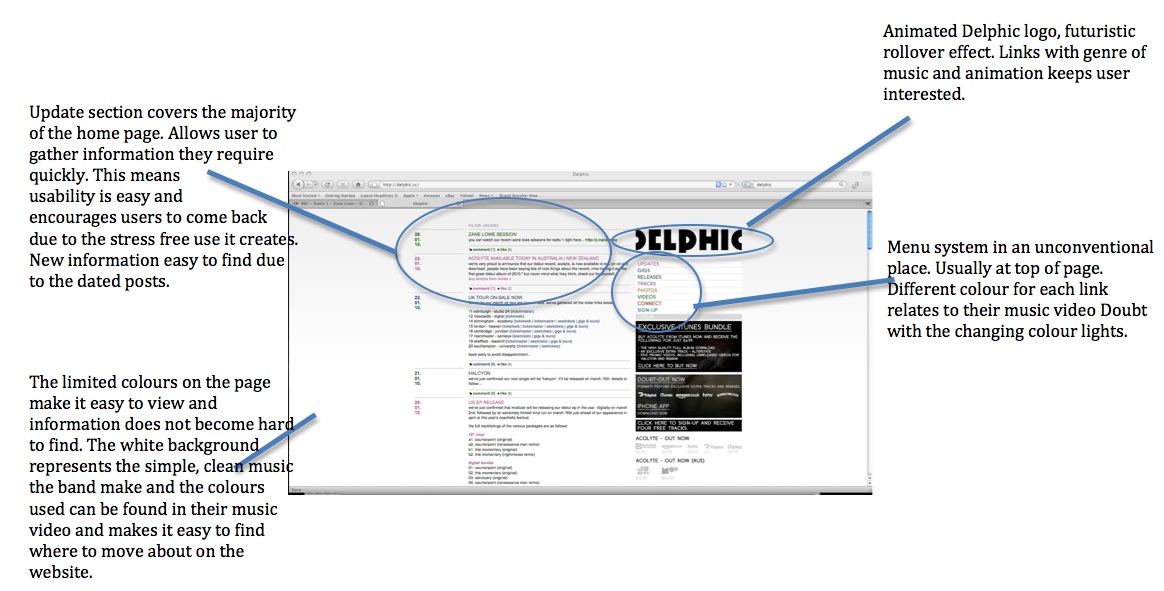
Above are websites that our group have said are inspiring and we should take aspects of these websites. As you can see they are all simple and do not have a lot on the home page causing it to be busy. A busy website is the easiest way to prevent someone looking at the website as too much information will prevent someone actually looking through it and reading bits they like. By having a simple website information would be found easily meaning it has good user usability.
Some of the aspects we liked from these websites are:
Video,
Scroll Box,
Members sign in,
Interesting Menu,
Links to external sites,
Clear information